Start with the part of teaching you want help with.
Your class, your schedule, unit planning and report cards, each on its own corner of the desk. Explore step by step, read the whole story below, or watch a short video with sound.
Reviewed
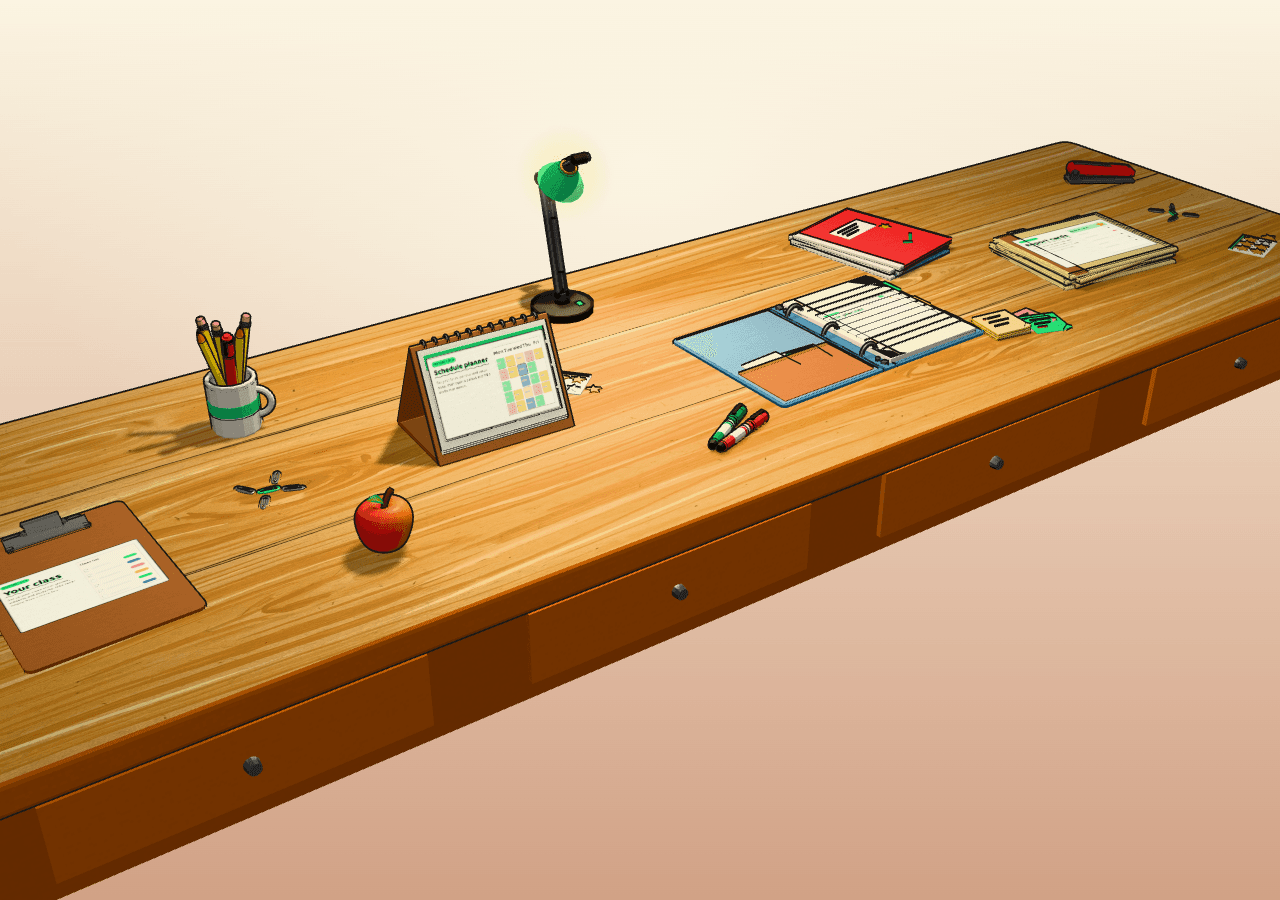
Your class
Set up your class once: grades, subjects and students. Milo never begins from a blank box.
See all 10 steps
Start from your class
Set up your class once. A blank AI box starts from scratch. Milo starts from your class.
Create your class
Create a class in three steps. Name it, pick your school or prefer not to say, and choose a colour.
Grades and subjects
Pick one grade, or two for a split. Tick the subjects for each, then review and create.
Add your students
Add your students in one table, with a pronoun and a grade for each.
A few lines on each
Then a short profile for each. Strong at mental math. Strengths, needs and interests.
Units from your class
From here, the class comes with you. Build a unit from its Ontario expectations, with activities tiered for each grade.
Your timetable knows it
In the planner, link a block to this class and subject. Open that period, and choose its expectations from that class's curriculum.
Adapt for one student
Adapt a text, worksheet or rubric for one student. Add sentence starters. Milo works from the profile you wrote.
Report cards, same class
At report time, the same class and students are there. Choose the sub-skills and expectations you report on.
Set up your class once
Set up your class once. Units, lessons, adaptations and report cards start from it. Student names are never sent to the AI. Try Milo free for a month.
Schedule planner
Set your term, periods and preps once, then open a period and Milo drafts that lesson.
See all 9 steps
A full teaching week
You have five days of periods to plan. Milo puts your week on real dates, and drafts a lesson for the period you open.
Set up the term once
Name the term and its dates. Pick a week, or a Day one to five rotation. Then add periods, recess and lunch.
Place your blocks
Homeroom or rotary? Link each teaching block to its class and subject. Add prep blocks, and switch on recess supervision. That's your week.
Your week on real dates
The planner shows your week on real dates. Switch to day or month. Open a teaching period.
Choose the expectations
Generate with Milo. No prompt writing needed. Pick expectations from that class's Ontario curriculum. Add notes if you like, and Milo does the rest.
A lesson for that period
Milo drafts the lesson. Goals, success criteria, a learning sequence, assessment checks, and Access and UDL options. Review it, and edit any section.
Notes before and after
Add notes before and after class. The exit ticket was too hard. Refine that lesson with feedback, and Milo reworks it with your notes in view.
Calendar changes, previewed
Snow day. Shift the day, and Milo previews the change before you confirm it. Displaced lessons are moved or parked, never deleted.
Put your teaching week in place
Draft it, give feedback, and keep your notes beside it. Questions? Text our helpline from the help section in Milo. Try Milo free for a month.
Unit planner
Pick the Ontario expectations and Milo drafts your unit and lessons, split grades included.
See all 10 steps
Two grades, one room
Two grades. One room. Milo sorts your expectations by grade and subject, then plans one unit for both.
Set up your class once
Set up your class once. Pick both grades, then the subjects you teach in each.
Add your students
Add your students in one table. Then add a few lines on their strengths, needs and interests.
Choose the expectations
Build a unit of five lessons, then tick expectations from both grades. No prompt writing needed. Milo builds the prompt from your class, grades and expectations.
Milo drafts the unit
Add exit tickets and accommodations, then create. Generate the introduction, the overview, then each lesson.
One focus, tiered by grade
Each lesson has learning goals and success criteria, written to follow Growing Success. Both grades share one focus, with tiered activities for each grade. Each activity comes with UDL variations: choices, representations and supports.
Texts, worksheets, rubrics
Make a student text, or a worksheet with an answer key. Rubrics follow the Achievement Chart, levels one to four.
Adapt it for one student
Adapt a saved item for one student. Add a word bank. Milo drafts it from their profile.
Your notes steer the lesson
Add a planning note before, and a reflection after. Regenerate, and your notes steer that same lesson.
Start with the class you already teach
Download any of it as Word. Student names are never sent to the AI. Try Milo free for a month.
Report cards
Move a slider for each skill, add evidence, and Milo drafts one Growing Success comment with next steps for you to edit.
See all 9 steps
Report card season
Don't lose all your time drafting report cards. Six learning skills per student, and one comment. Milo drafts it from your judgement.
Set up the report once
Set up the report once. Pick the reporting period. Paste your school's guidelines. Then choose the sub-skills you report on.
Move the sliders
Next, move a slider for each sub-skill, from zero to one hundred. The label changes as you drag, from Not Yet up to Champion.
A suggested E, G, S or N
Milo suggests E, G, S or N for each skill as you go. It's only a suggestion. And you choose the level on the report card.
Add a line of evidence
Add a line of evidence if you have one. Type it, or tap the microphone and say it. Your notes shape the next steps.
Generate one paragraph
Okay. Generate. Milo drafts one parent-friendly paragraph in Growing Success language. Strengths first, then two or three specific next steps. It is written to fit the character limit for each reporting period.
Tighten, expand or ask
Want it shorter? Select Tighten, and Milo writes a new version. You can also expand it, or request changes in your own words.
Set the version you want
Set the version you want as active. That's the one. Then copy the text into your board's report system. You approve every word.
Milo drafts. You decide.
Student names are never sent to the AI. The real name appears only on your screen. Try Milo free for a month.
Watch each one with sound
Your class
Set up your class once: grades, subjects and students. Milo never begins from a blank box.
Read the transcript
- Add students with a few lines on their strengths, needs and interests.
- Units, lessons, adapted materials and report cards all start from your class.
- Open lessons and ready-made interactive lessons on the board.
Schedule planner
Set your term, periods and preps once, then open a period and Milo drafts that lesson.
Read the transcript
- Week, day and month views of your timetable, including Day 1–5 rotations.
- Give feedback and Milo revises the lesson. Keep pre- and post-lesson notes beside it.
- Preview changes before confirming. Lessons are moved or parked, never deleted.
Unit planner
Pick the Ontario expectations and Milo drafts your unit and lessons, split grades included.
Read the transcript
- One unit across subjects: choose expectations from more than one subject.
- Both grades have a place: one shared focus, with tiered activities for each grade.
- No prompt writing needed. You choose, Milo drafts, and you edit everything.
Report cards
Move a slider for each skill, add evidence, and Milo drafts one Growing Success comment with next steps for you to edit.
Read the transcript
- Six learning skills on E/G/S/N, strengths before next steps, parent-friendly wording.
- Paste your administrator's guidelines or sample comments in setup, and every draft follows them.
- Student names are never sent to the AI.
Also in Milo
Adapt for one student
Rewrite any student text, worksheet or rubric for one student, using the strengths, needs and interests you recorded.
See how →Rubrics and worksheets
Achievement Chart rubrics and worksheets with answer keys, downloadable as Word.
Interactive lessons
Interactive lessons on the board. A growing beta library is included in the Professional plan.
Preview · in development
Ontario lesson packs, coming to Milo
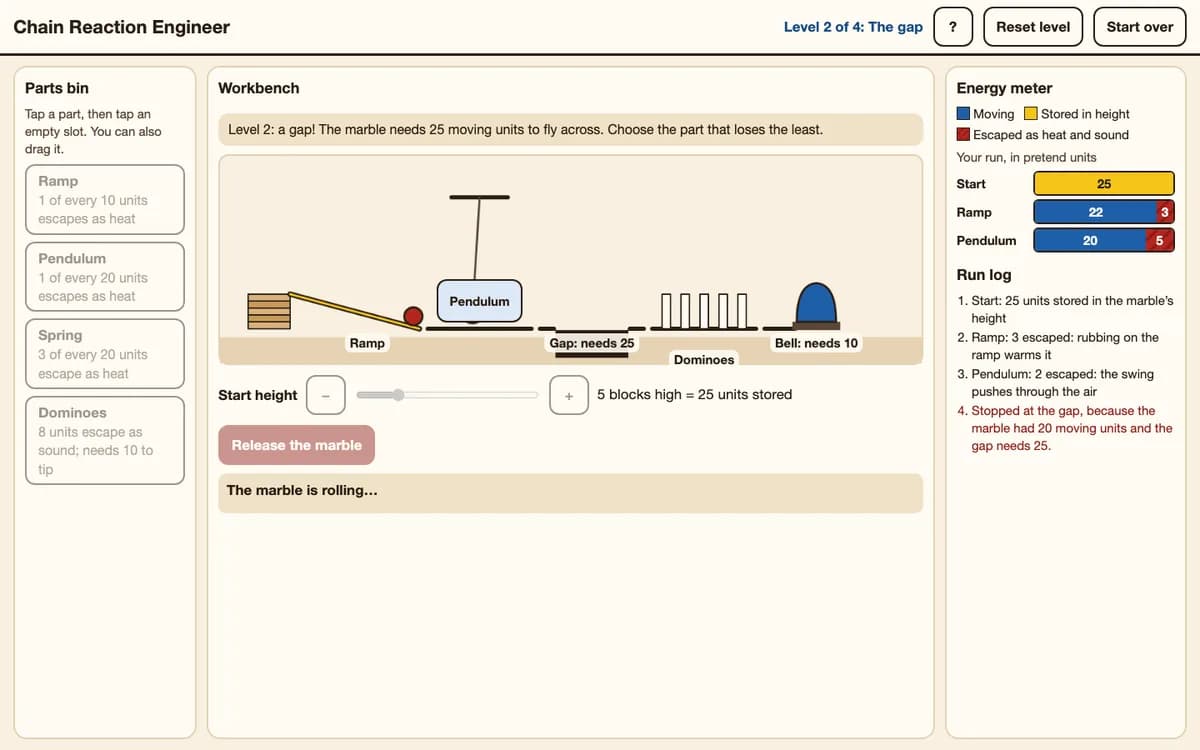
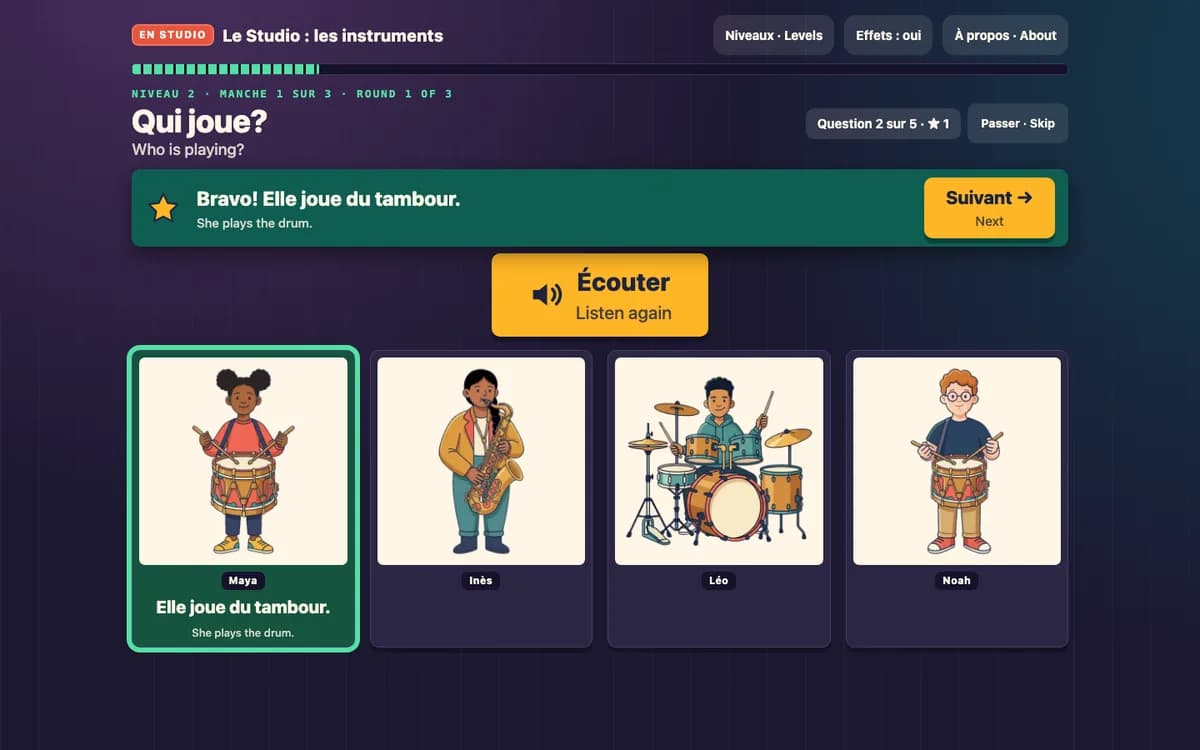
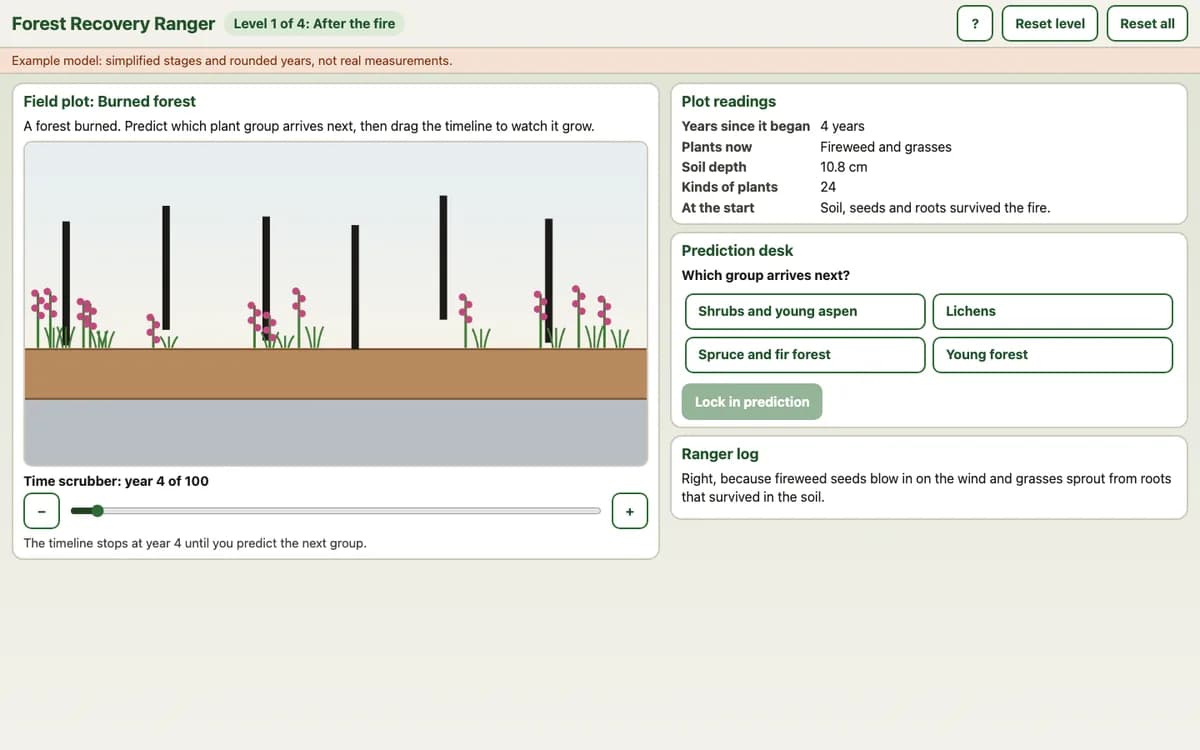
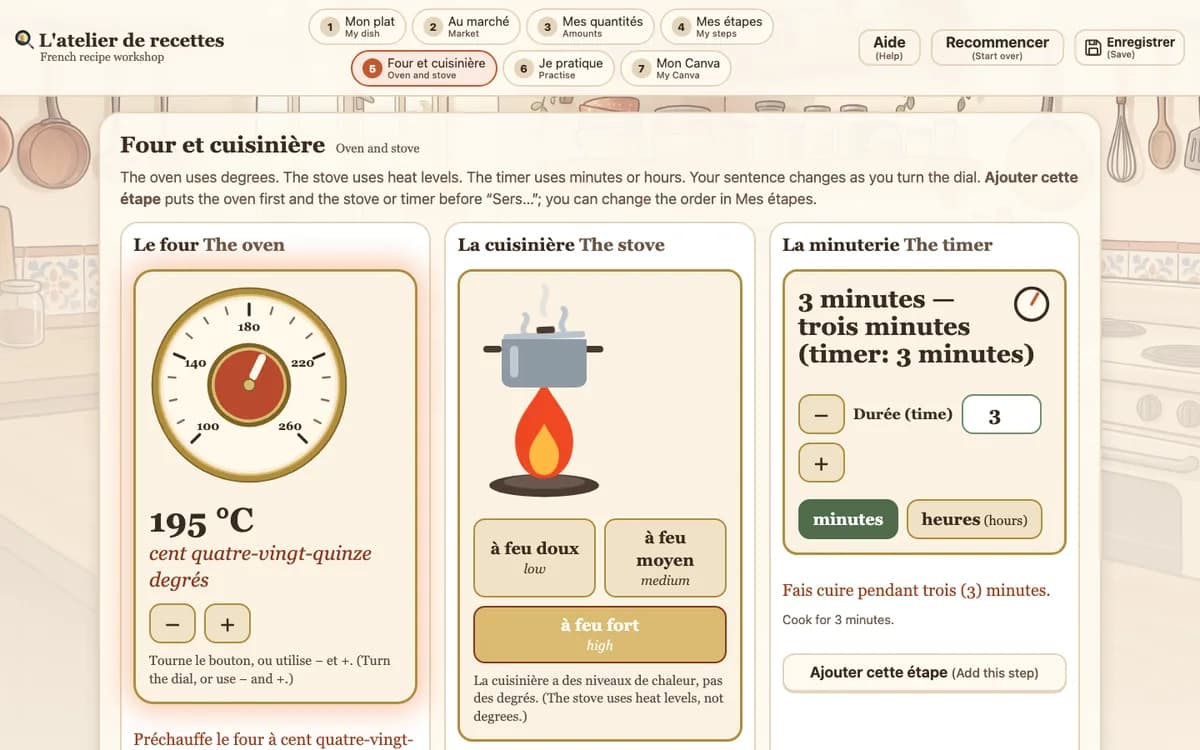
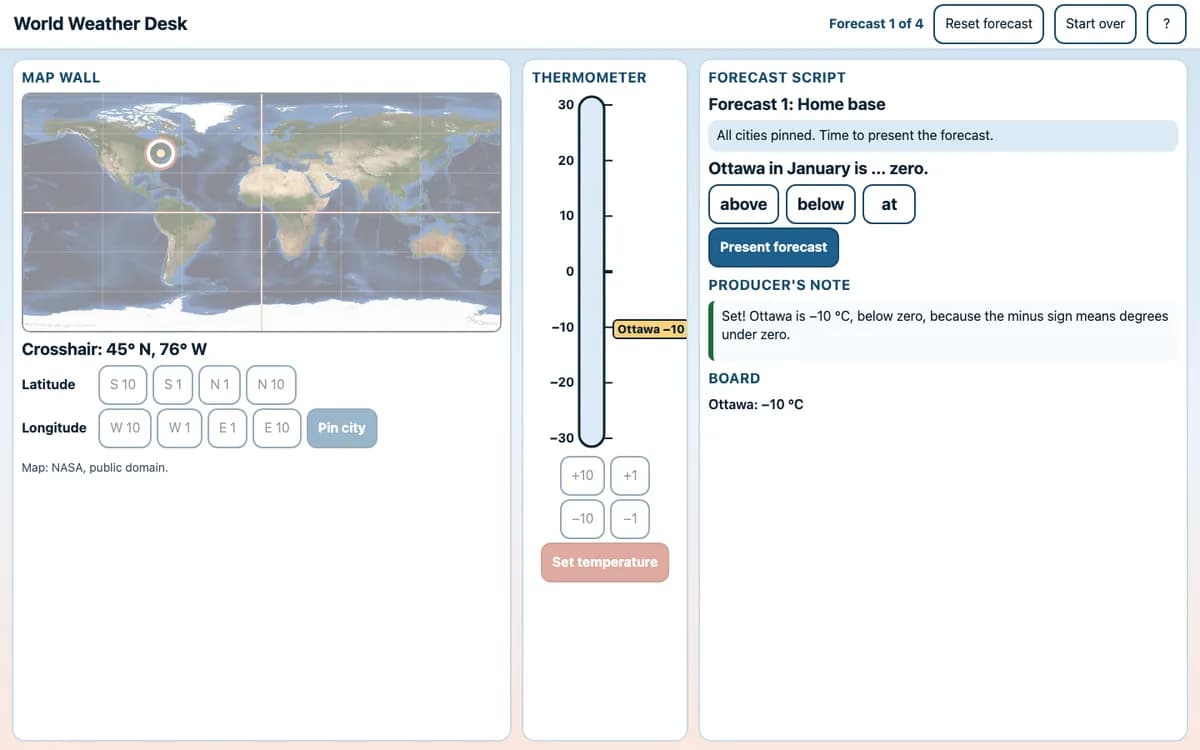
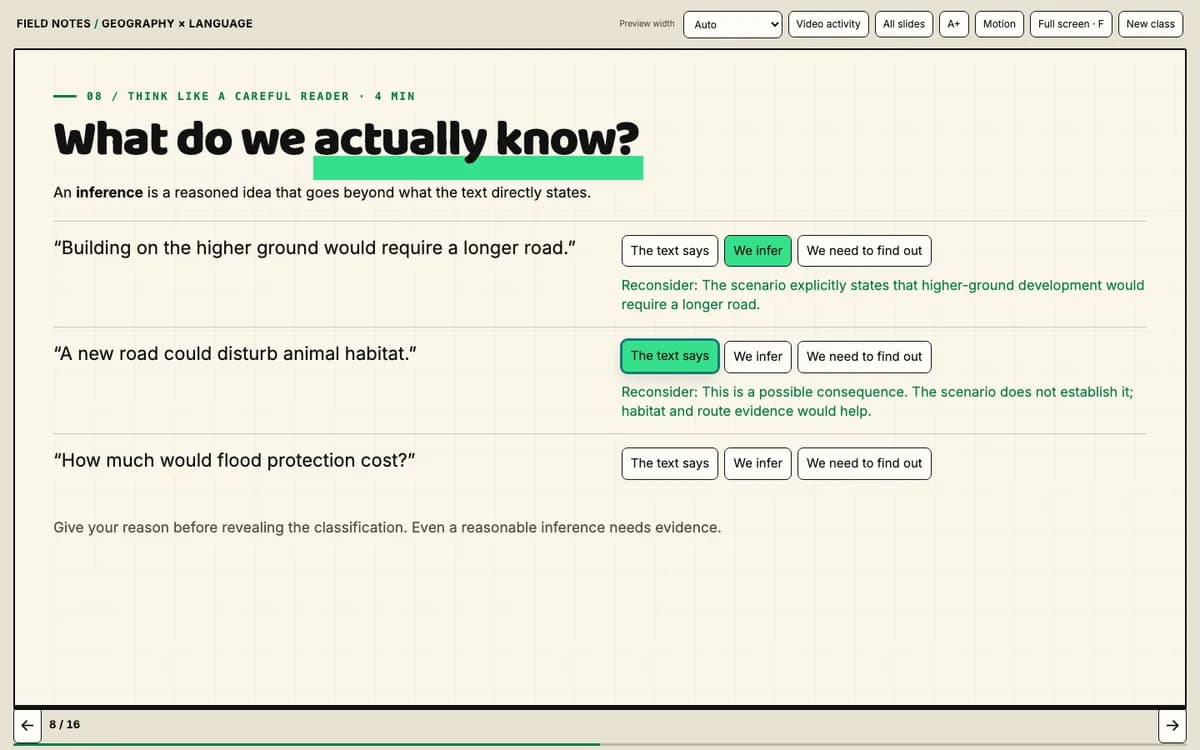
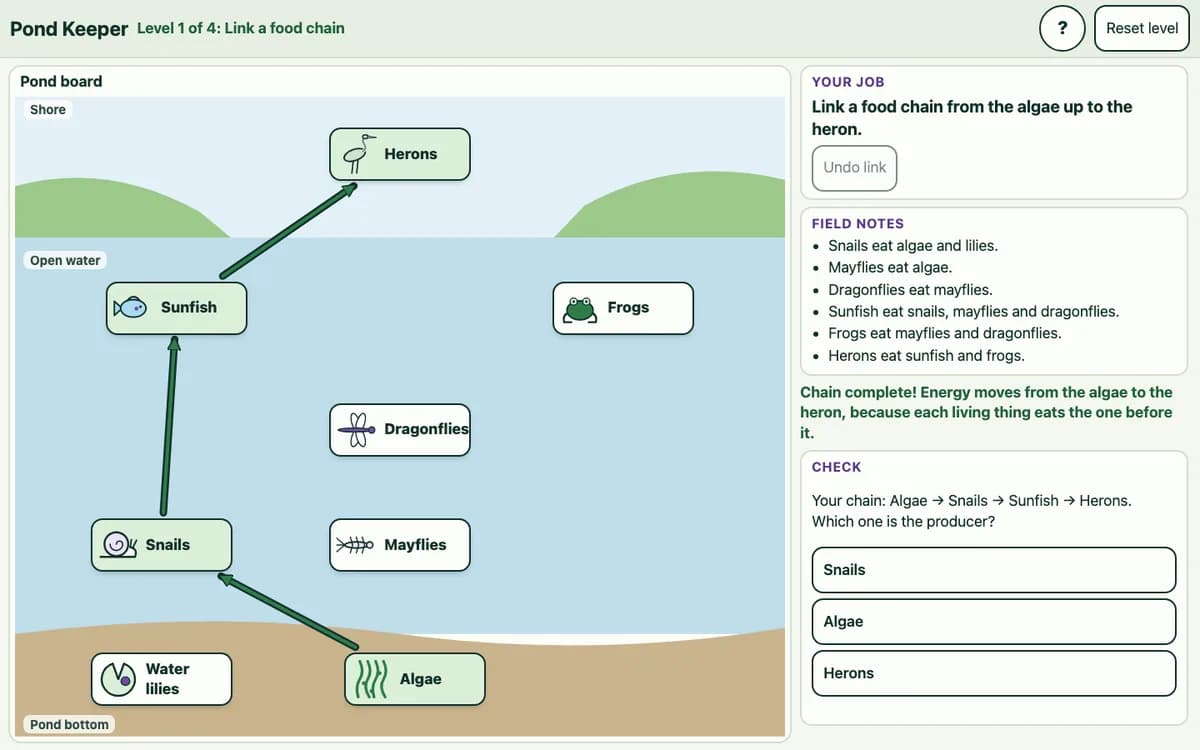
We are building complete Ontario lesson packs: an animated deck, printable sheets, a digital worksheet and a game, all linked to the exact curriculum expectations. Grades 4 to 8, across math, science, language, French and geography. They are in review now and are not part of a Milo plan yet.
1 / 8
Coming next
- Download a lesson from a schedule periodComing
- Ontario lesson packsIn review
Images are from lesson packs in development and internal review. Content may change before release.
Today’s subscription stays simple
One live plan. Future work clearly labelled.
Milo Professional is $10 CAD per month after your free first month. The lesson packs previewed above are in review and not part of the plan yet.
Frequently asked questions
What can Milo do for teachers?
Today, Milo connects curriculum-grounded planning, adaptable resources, interactive teaching aids, assessment, and reporting in one teacher-guided workflow. A student workspace is designed and being built to bring learners into the same loop.
Does Milo cover Learning Skills and Kindergarten?
Yes. Milo handles the six Learning Skills and Work Habits and supports the Kindergarten Four Frames Communication of Learning. Milo suggests E/G/S/N for learning skills and uses letter grades for subject comments. You review and approve every draft. Levels 1 to 4 appear in Milo's rubric generator.
How much does Milo cost?
Milo Professional is $10 CAD per month after your free first month. It includes every feature currently available in the Professional plan; roadmap prototypes and future plans are labelled separately.
Is my students' data private?
Milo’s primary application records are hosted in Canada. Some service providers may process information in other countries as described in the Privacy Notice. Personal information is excluded from model training by default; any opt-in requires express consent.
Can Milo generate Ontario lesson plans?
Yes. Milo drafts Ontario curriculum-aligned unit and lesson plans from the expectations you choose, with student texts, worksheets and rubrics to match, then you review and adapt them. The same tool adapts those materials for one student at a time and drafts Growing Success-ready report card comments — one plan, $10 CAD a month, first month free.
Is there an Ontario lesson plan generator?
Milo is an Ontario lesson plan generator built for Ontario teachers: it generates curriculum-aligned lesson plans you can review and adapt, plus differentiation and Growing Success report card comments, all from your own evidence with you approving each output.